Ready
Notifications
Drag a part to move it · Shift + drag to lift · Right-drag to pan · Scroll to zoom
Mission
Start a new class or team
Each one gets a join code and a sign-up link to send your students. They join it when they sign up, or later on their Me page.
Help and guides
Everything you need to build, program and run your robot, print a real mat and table, and make your own fields.
Getting started
- Pick a mat. On , choose a competition field (WRO, FLL, Robofest, sumo) or a practice field.
- Pick a robot. On , press Drive on the mat on a ready-made robot, or build your own on from real LEGO parts.
- Write the program. On , start with when program starts and snap blocks under it, or switch to Python. The Python of your blocks shows beside them.
- Run it. Press the yellow Run. The Mission card on shows the tasks and the live score. Change the speed with 1× and the view with Camera (Top down, Follow, Chase).
Use your own mat
- On , drop a picture or the official PDF onto Upload an image or PDF. The first page of a PDF is used.
- Type the real printed size in millimetres (a WRO or FLL table is 2362 × 1143). Colour sensors read the exact colours of the picture, so the size must be right.
- Turn the table walls on or off and set their height, then press Apply size and walls.
No picture? Describe a challenge under Make a mat with AI and the AI helper draws the field with walls, objects and scored tasks.
Make your own mat
Draw a practice mat in any drawing app, put it in RoboSimu at its real size, add things for the robot to push, and print it for the real table. The guide shows the sizes and the colours the sensors read best.
Programs that work
- Straight moves: use move forward … cm. When a move ends: hold position keeps the wheels locked, so the next move starts exactly where the last one stopped.
- Sensors: colour sensors are on ports 1 and 2 on most robots; the sensor bar under the field shows what each one reads now. Distance sensors see walls, objects and mission models.
- Decisions: Control › Decisions has if, if … else, and the one with a gear to add more cases.
- FLL mission models are solid, like the real ones. To practise a drive path first, untick Mission models on the table on the Mission card.
- Python: errors show the file and line. A
while True:loop never freezes the page, and Stop always works.
Competitions
On , join a free challenge or register for a competition. Practise as much as you like; while it is live, Start official attempt runs your program on the official field and sends the score. Winners get a medal, their prize and a signed certificate as a PDF.
Print the mat and build the table
FLL Challenge 2026/27 BIOGLOW
- Mat picturefor printing at 2020 × 1143 mm
- How to build the mission modelsPDF · building instructions
- Where each model goesPDF · path diagram and grid
- Challenge updatesPDF · rule changes for this season
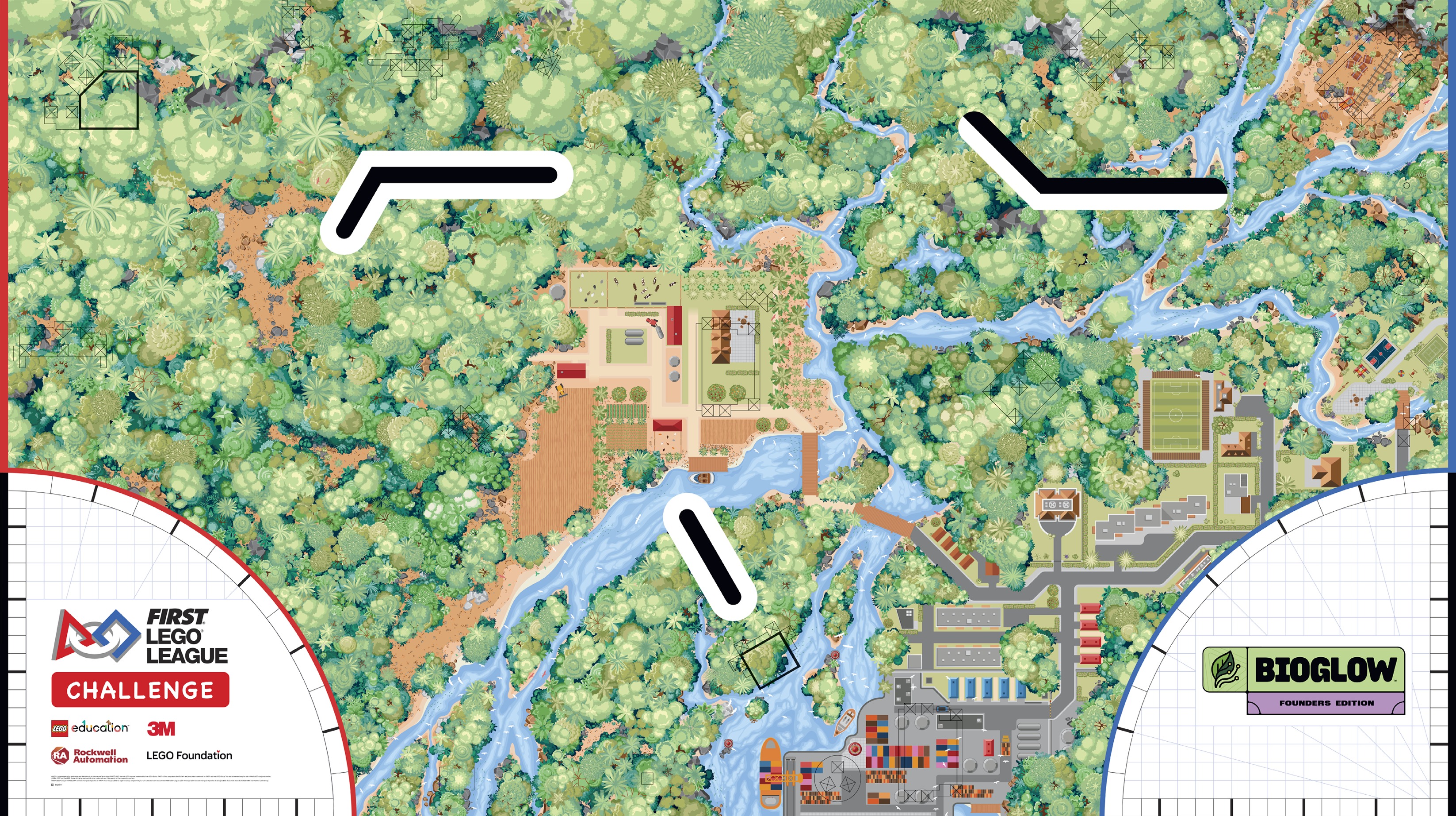
Competition table
WRO
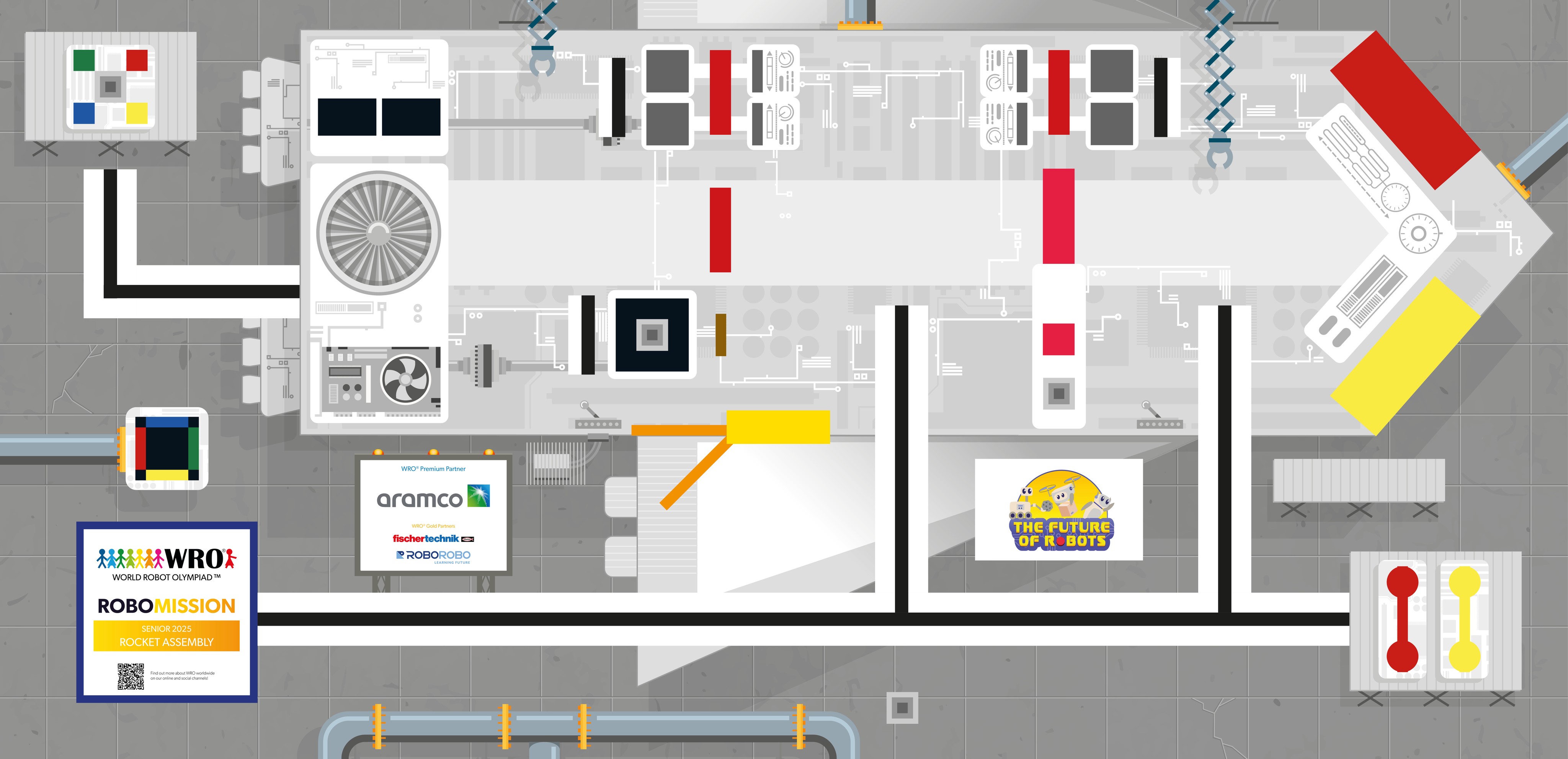
Questions
My robot stops in front of something
It touched a wall, an object or a mission model. Watch from Top down, check the distance sensor, and change the path or turn earlier.
The robot does not drive quite straight
Real motors are never identical, so RoboSimu adds a small difference on realistic mode. Use a gyro straight block (Line Follower) or check the wheel size on the Build page.
The run looks slow
At 1× the robot moves at the real robot’s speed. Pick 2× or 4× next to Run to go faster.
How do I get my program onto the real robot?
On Code, press .py to download it, then open it in the Pybricks or SPIKE app and send it to the hub.
Needs you
Newest accounts
| Person | Account | Team | Joined | Last in | Actions |
|---|
Make a team accountFor a school team that shares one login. Its team and join code are made with it.
Post a notice
It shows in a bar at the top of RoboSimu and on each person's Me page.
All notices
Season mats
Each season the mat finder looks for the new WRO and Robofest mats. New mats wait here until you approve them.